Monitors and workspaces
Touch or Non-Touch Portable Monitor? Choose Around Your Workflow
By Modexa
Decide whether touch input adds value to your portable monitor setup, then check the selected variant, device support and required connections.
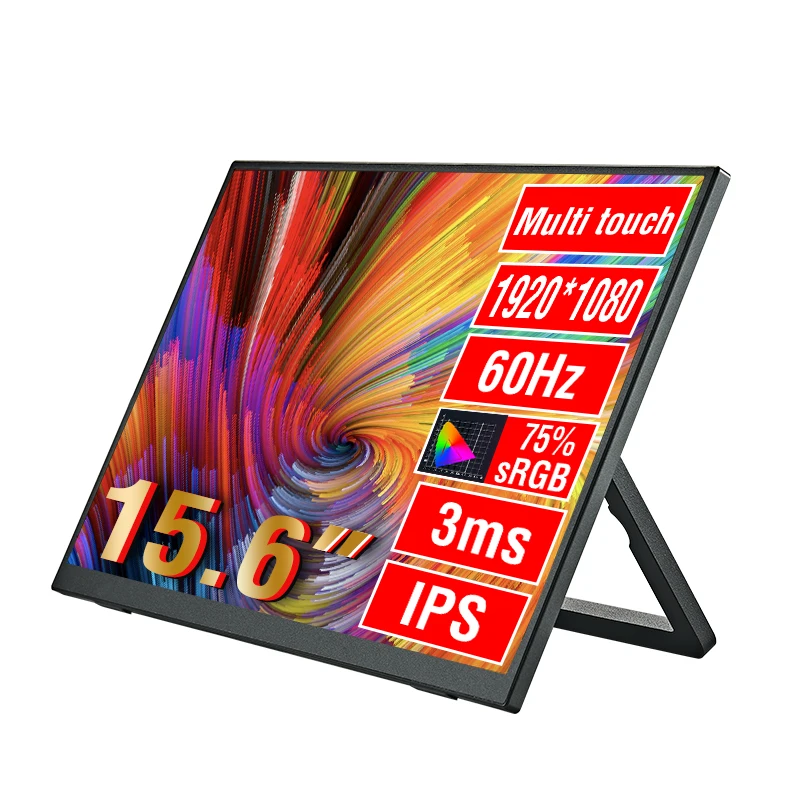
Picture a task where you would reach for the screen
Before paying for touch input, name a task where touching the display would help you. Perhaps you want to move through a supported application while showing someone a project. Perhaps you mainly need space for a reference document beside your main window. In the second situation, you may continue using a mouse and keyboard. Start with the task rather than assuming an extra feature automatically makes one version the better purchase.
Check the selected option, not only the product title
A listing can group touch and non-touch versions on the same page. Modexa's Anmite portable-monitor listing includes both options, so the selected version matters. Read the option label before adding it to the cart and check it again in the order summary. A product photograph or a title containing touchscreen is not enough to identify every available configuration. If an option is unavailable or unclear, ask which version you would actually receive.
Confirm touch support for the exact device
Check the monitor's documented touch compatibility with your specific computer and operating system. A claim that a monitor can show a picture from a device should not be treated as confirmation that touch input works with the same setup. Ask for the supported connection arrangement and any software requirements. Keep the laptop or tablet model, operating-system version and planned adapter available when you contact support, so the answer addresses your combination rather than a different device.
Map the complete connection before ordering
List the connections available on your device and compare them with the monitor's specified inputs. The Anmite listing names Mini HDMI and USB Type-C; confirm the required route for picture, power and touch with the selected version's instructions. Also check the supplied cables and any adapter you plan to use. Do not assume a connector's shape establishes every function you need. A quick connection sketch can reveal missing parts before the monitor arrives.
Consider reach, support and screen position
A screen that works well beside a laptop may not be comfortable to reach repeatedly. Think about where your hand would move, what supports the monitor and whether the arrangement leaves room for the keyboard. Check the stand or bracket details for your chosen model. Consider the surface you normally work on, not just the setup in a promotional photograph. If you travel with the monitor, include the stand and required cables in your packing plan.
Choose the simpler version when it meets your needs
Touch is useful when a supported task and compatible setup justify it. A non-touch version can still provide the extra display space you need for documents, messages or reference material. Make the decision using confirmed compatibility, your routine and the current price of each available option. Review the product page and return terms before ordering. This guide helps organize the questions to ask; it is not a hands-on test of either configuration.
Check the manufacturer guidance
Explore the products
Compare the Anmite monitor options
Questions before ordering? Contact Modexa. Review our shipping policy and return policy.