Laptops & business computing
ThinkPad P14s Gen 6 or X1 Carbon Gen 13? Compare the Modexa Configurations
By Modexa
Compare the listed processor, memory, storage and display options of two ThinkPad laptops at Modexa, then choose around your work and software requirements.
Start with the configurations actually listed
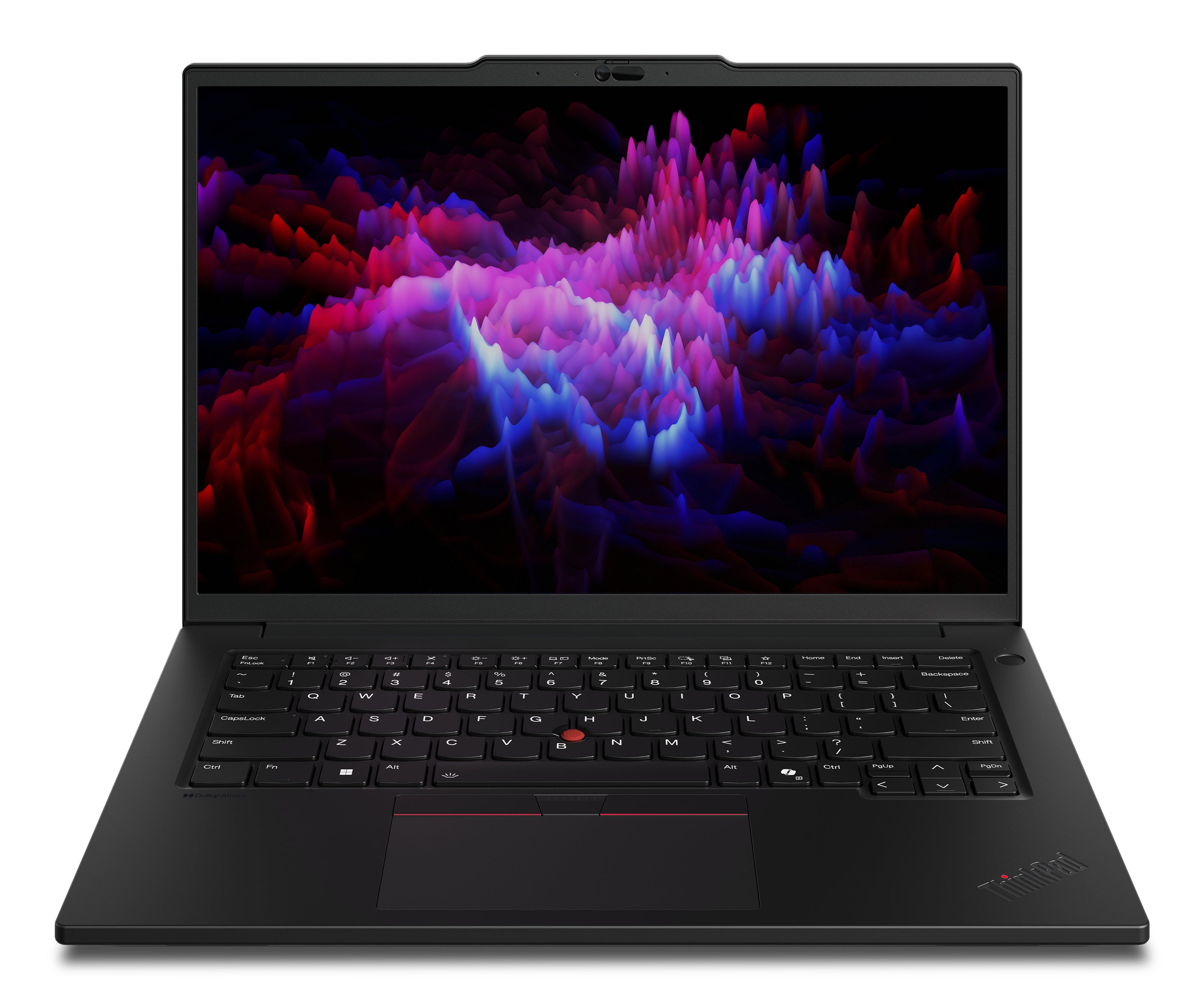
Two laptops can share the ThinkPad name while offering different configurations. Modexa lists a ThinkPad P14s Gen 6 and a ThinkPad X1 Carbon Gen 13 Aura Edition. This guide compares the specifications named in those listings; it is not a hands-on performance review. Use it to prepare your shortlist, then check the current product page and selected options before purchasing. The same model family can be sold in several configurations.
What the P14s listing includes
The listed ThinkPad P14s Gen 6 configuration names an Intel Core Ultra 9 285H processor, 32 GB of DDR5 memory and a 1 TB SSD. Its title also specifies a 14.5-inch WUXGA touchscreen and Windows 11 Pro. Those details provide a useful starting point when comparing software requirements, local file storage and display preferences. Confirm any graphics hardware, ports, upgrade options and included accessories with the exact listing rather than assuming every P14s has the same equipment.
What the X1 Carbon listing includes
The ThinkPad X1 Carbon Gen 13 Aura Edition listing names an Intel Core Ultra 5 225U processor, 16 GB of LPDDR5x memory and a 512 GB SSD. It specifies a 14-inch WUXGA display and Windows 11 Pro. Compare those details with the applications and files you use each day. Check the dimensions, weight, display features and connection options for this exact configuration if carrying the laptop or using existing desk accessories is important to you.
Match memory and storage to your workload
The P14s configuration has more listed memory and storage than the X1 Carbon configuration in this comparison. That is a specification difference, not a guarantee that every task will finish faster. Consider the applications you run together and the amount of material you keep locally. If you use demanding professional software, check its current processor, memory and graphics requirements. Ask about upgradeability before buying if you expect to expand the machine later.
Compare the display and your desk setup
Consider how you actually use a laptop throughout the day. The P14s listing identifies a touchscreen, while the X1 listing identifies its display size and resolution class without establishing touch support. If touch input matters, verify it for the selected product. List any external monitors, docks, chargers or adapters you plan to use, then confirm the required connections and capabilities. A similar connector shape alone is not enough to establish compatibility.
Check the details that a model name cannot answer
Before ordering either laptop, review condition, keyboard language, included charger, warranty information and delivery details. Ask for clarification where a specification is missing. Battery runtime, application performance and suitability for specialist work need more evidence than a processor family name. If a product description refers to options available across the model range, confirm which ones apply to the unit you are selecting. Keep the agreed configuration with your order information.
Choose from your requirements, then confirm the purchase
Write down your essential applications, preferred display features, storage needs and existing accessories. Compare that list with both product pages, then contact Modexa with any unanswered questions. Use the current listing and checkout for price, availability and delivery information instead of relying on a figure in an article. Open the P14s configuration below or use the X1 Carbon link to compare the second option before making your decision.
Explore the products
Questions before ordering? Contact Modexa. Review our shipping policy and return policy.